Red Faction Quick Start Guide
Welcome to the Red Faction Quick Start Guide!
Essentials
- Recommended game version/client: Alpine Faction
- Alpine Faction is the most fully featured Red Faction client ever released, and is recommended for all purposes. It is free, open source, and community-developed.
- It resolves countless bugs with the game, fixes virtually all compatibility issues with modern computers, and adds many very useful features. Furthermore, the Red Faction Campaign, as well as many custom levels and mods, simply won't function properly without it. There is no downside to using Alpine Faction, and it is highly recommended you install it if you wish to play or host servers for Red Faction.
- You can read more about, and download Alpine Faction here: Alpine Faction
- Join the community! Red Faction Community Discord
- The community is approachable, and very welcoming to both new and old school players alike. If you like Red Faction, you'll fit right in.
- Join by clicking: Here
Quick Links
- Discord - Invite link to join the Red Faction Community Discord: where the community lives, and the place to ask questions, receive assistance, or find players.
- Alpine Faction - Information and download link for the modern Red Faction client: Alpine Faction.
- Red Faction FAQ - FAQ page providing answers to common questions and solutions to common issues.
- FactionFiles.com - FactionFiles community file host, offering thousands of custom maps and mods.
- Red Faction Console Commands - Complete listing of all available console commands in Red Faction.
- Red Faction Command Line Parameters - Complete listing of all available command line parameters in Red Faction.
- RF1 Editing Main Page - Comprehensive community knowledgebase on level creation via the Red Faction Level Editor, and mod development.
- Red Faction Multiplayer Guide - Overview of the most important aspects of RF multiplayer.
- Red Faction Locations - Overview of all the levels in the RF stock single player campaign.
Settings
In-Game Settings
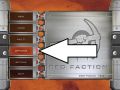
Options button
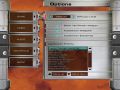
Game options
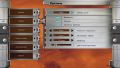
Video options
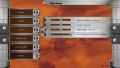
Audio options
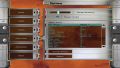
Controls options


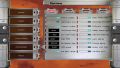
Advanced visual options (Alpine Faction only)
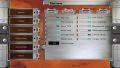
Advanced UI options (Alpine Faction only)
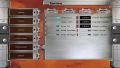
Advanced input options (Alpine Faction only)
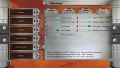
Advanced misc options (Alpine Faction only)


- Game Options
- Difficulty Level - Set difficulty for single player. Affects damage taken from enemy weapon fire, amount of ammo/health/armor obtained from pickups, and duration of countdown timers. Also configurable in-game via the sp_difficulty console command. (in Alpine Faction)
- Show 1st Person Weapon - Toggle visibility of first person weapon models.
- Autoswitch Weapons - Toggle autoswitch for non-explosive weapons (as per priority specified in Autoswitch Priority).
- Autoswitch Explosives - Toggle autoswitch for explosive weapons (as per priority specified in Autoswitch Priority).
- Autoswitch Priority - Priority for weapon autoswitch (if turned on, see above). When you pick up a new weapon, if autoswitch is turned on and the new weapon is higher in the priority list, switch to the new weapon. Move up and Move down move the selected weapon in the priority list.
- Video Options
- Detail Level - Set video options preset. Available options are Low, Medium, High, and Custom. Automatically changes to Custom if you edit any settings manually.
- Shadows - Toggle visibility of circle shadows under enemy player models.
- Decals - Toggle visibility of bullet and blast decals on geometry.
- Dynamic lighting - Toggle visibility of dynamic lighting (including level dynamic lights, muzzle flashes; light emitted from projectiles; glows coming from players with powerups or CTF flags)
- Texture resolution - Set texture resolution. Available options are Low, Medium, and High. High renders textures at their native resolution, medium scales them down by a factor of 2, low scales them down by a factor of 4.
- Character detail - Set model detail level. Despite label, this option sets detail level for all models, not just characters. Available options are Low, Medium, and High.
- Filtering - Set filtering level. Available options are bilinear and trilinear. Also configurable in-game via the r_trilinearfiltering console command. (in Alpine Faction)
- Gamma/brightness - Sets gamma for the game window. Also configurable in-game via the r_gamma console command. (in Alpine Faction)
- Sound Options
- Sound Effects Volume - Set volume for any sounds that are not considered music or messages.
- Music Volume - Set volume for all music tracks in game. Note that in come custom multiplayer maps, music is configured to use Sound Effects Volume instead.
- Messages Volume - Set volume for HUD radio messages (from Eos, Hendrix, Capek, etc.)
- Environment Sounds Multiplier (Alpine Faction only) - Set volume multiplier (of Sound Effects Volume) which is used for environmental and ambient sounds in levels.
- Controls Options
- Mouse Sensitivity - Set sensitivity modifier for mouse input. Also configurable in-game via the ms console command. (in Alpine Faction)
- Mouse Y-Invert - Invert Y axis for mouse input.
- Binds - Set available binds. Double click on a bind to set it, or select it and click Change Binding.
- Default - Reset all available binds to their default settings.
- Advanced Options (Alpine Faction only)
- Advanced Visual Options
- Enemy bullets - Show impact effects for weapons fired by other players.
- Lightmaps only - Disable all level textures and show only lightmaps. In multiplayer, this option only has an effect if allowed by the server.
- Weapon shake - Allow camera shake for weapon fire. Applies to Submachine Gun and Assault Rifle in base game. In multiplayer, this option only has an effect if allowed by the server.
- Horizontal FOV - Set the horizontal field of view for the player camera.
- Gun FOV mod - Set the global modifier to the field of view value used for first person weapon models.
- Max FPS - Set the maximum framerate for your client. In multiplayer, a maximum of 240 is enforced unless the server has allowed uncapped framerates.
- Simulation dist - Set the maximum distance at which animations will be played for skeletal meshes.
- LOD scale - Set the scale value applied to the level of detail mesh quality transition distance.
- Full light range - Control whether the full range of available colours is used for rendering lights in legacy levels. If unselected, legacy lightmap clamping is applied (minimum colour value of RGB 32-32-32). Note that levels made for Alpine Faction are unaffected by this option and will always have access to the full range of available colours.
- View shake (SP) - Global switch for camera shake in all instances (weapon fire, environmental effects, impacts, etc.) Applied in single player only. Note that in single player, if this option is turned on, the setting of the "weapon shake" option is ignored - all camera shake is disabled regardless.
- Ricochet FX (MP) - Display ricochet visual effects in multiplayer. Note that ricochets deal no damage in multiplayer and are purely visual.
- Fullbright models - Control whether skeletal meshes (like player models) are displayed with fully bright lighting for increased visibility. If disabled, skeletal meshes use environmental lighting (like static meshes). In multiplayer, this option only has an effect if allowed by the server.
- Mesh static light - Control whether to use static lighting for meshes. If disabled, flat ambient lighting is used for meshes instead.
- Nearest filtering - Render using nearest neighbour texture filtering (hard pixel edges).
- Light glares - Control whether glares are displayed for light fixture static meshes.
- Muzzle lights - Control whether weapon fire causes blinking dynamic lights. In multiplayer, this option only has an effect if allowed by the server.
- Entity LOD (MP) - If enabled, use level of detail mesh transitions for skeletal meshes (ie. other players) in multiplayer. If disabled, use fully detailed meshes regardless of distance.
- Vertical sync - Wait for vertical sync. Reduces tearing at the cost of increased input lag.
- Advanced Interface Options
- Big HUD -
- Hit numbers -
- Show FPS -
- Show ping -
- Damage flash -
- Death bars -
- Reticle scale -
- CTF icons -
- Icon overdraw -
- Scoreboard anim -
- Label teammates -
- Minimal timer -
- Target names -
- Advanced Input Options
- DirectInput -
- Linear pitch -
- Swap AR -
- Swap Grenade -
- Swap Shotgun -
- Mouse sensitivity -
- Scanner modifier -
- Scope modifier -
- Linear scope -
- Toggle crouch -
- Advanced Misc Options
- Hit sounds -
- Taunt sounds -
- Autosave -
- Join beep -
- Pain sounds -
- Team radio msgs -
- Global radio msgs -
- Gaussian spread -
- Randomize bomb -
- FactionFiles Link Status -
- Advanced Visual Options